Choose a display
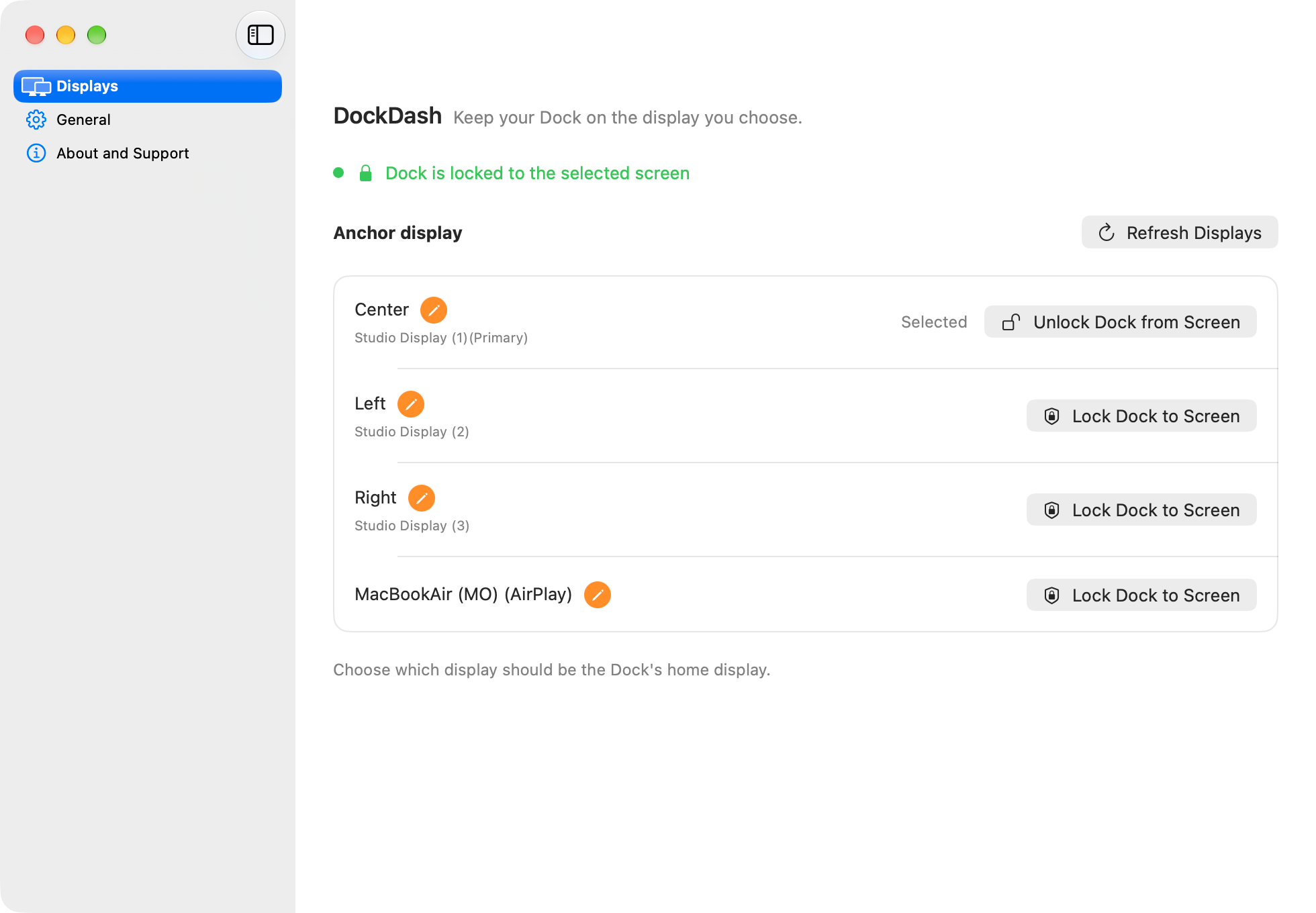
See connected screens, identify the primary display, and give each screen a DockDash alias.
DockDash for macOS
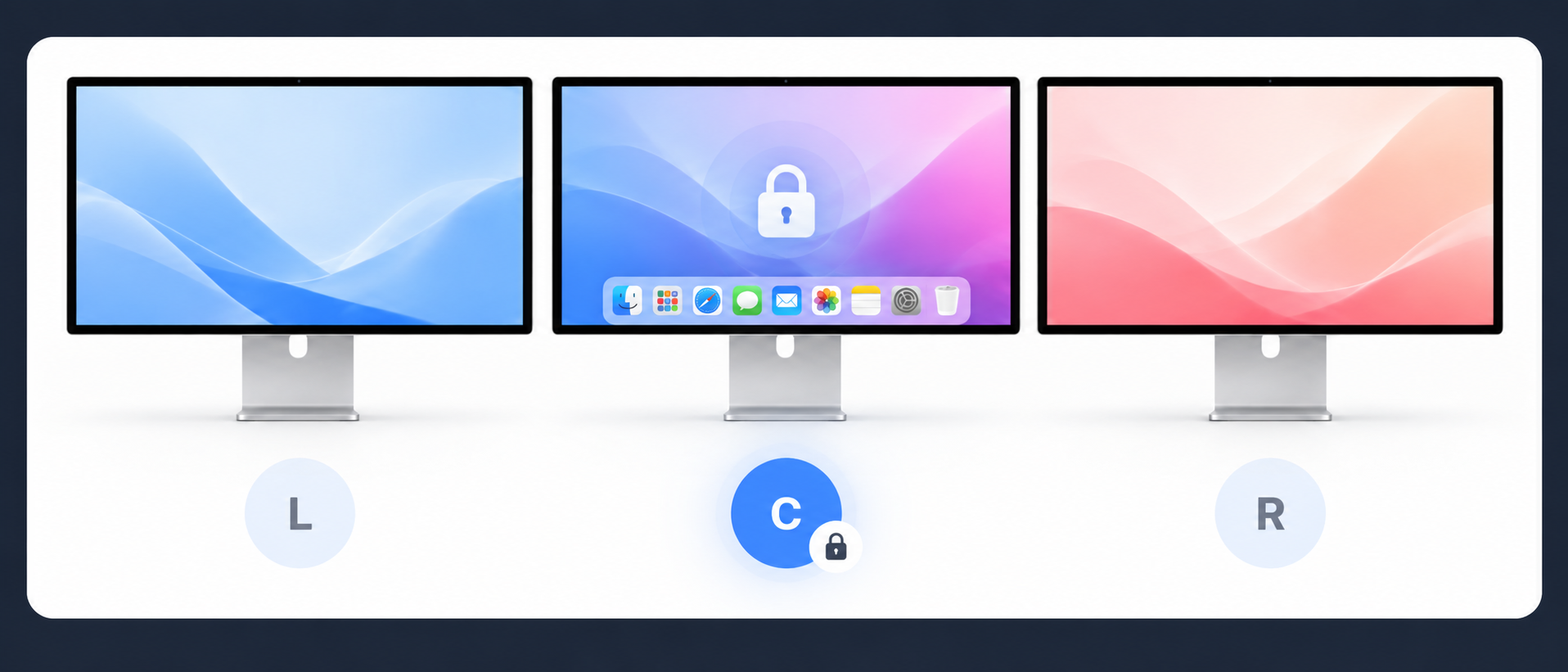
Choose which display should be the Dock’s home display. When protection is active, DockDash monitors Dock placement and can automatically attempt to move it when you select another display. The app reports that the Dock is locked only after macOS confirms its location.
Requires macOS 15.4 or later. Dock protection requires Accessibility and event access.
Choose a display, lock the Dock there, and manage protection from the dashboard or menu bar.
See connected screens, identify the primary display, and give each screen a DockDash alias.
When you choose another display while protection is requested, DockDash automatically attempts to move the Dock there.
See whether protection is starting, armed, locked, or waiting for permission. Locked means macOS has confirmed the Dock’s placement.
Check the protection status, choose a display, lock or unlock the Dock, open the dashboard, or quit DockDash.
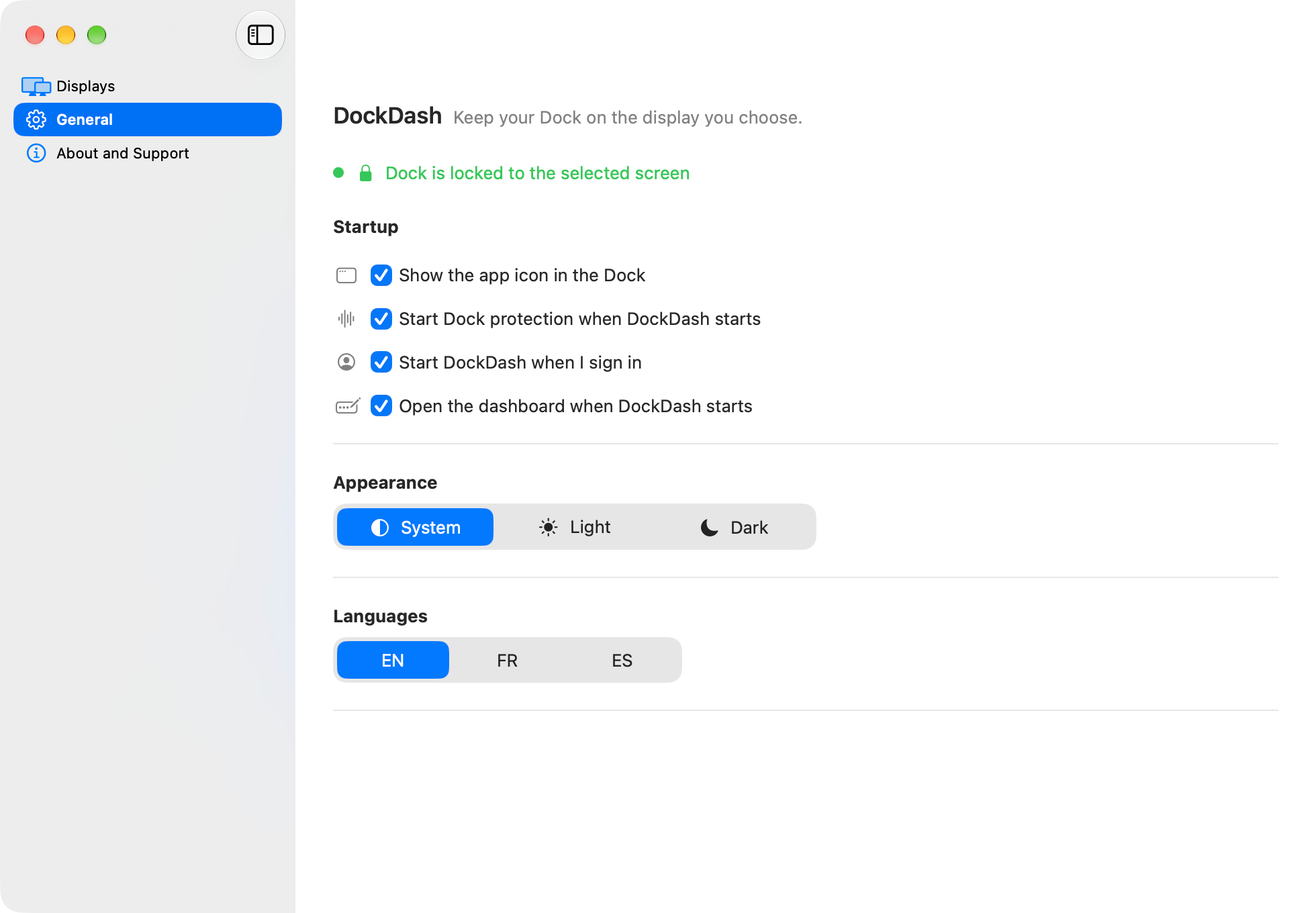
Choose whether DockDash requests Dock protection when the app starts. Placement is confirmed after macOS reports the Dock’s location.
Choose System, Light, or Dark appearance and use the English, French, or Spanish interface.
Choose a display, manage Dock protection, and adjust your preferences from one dashboard.
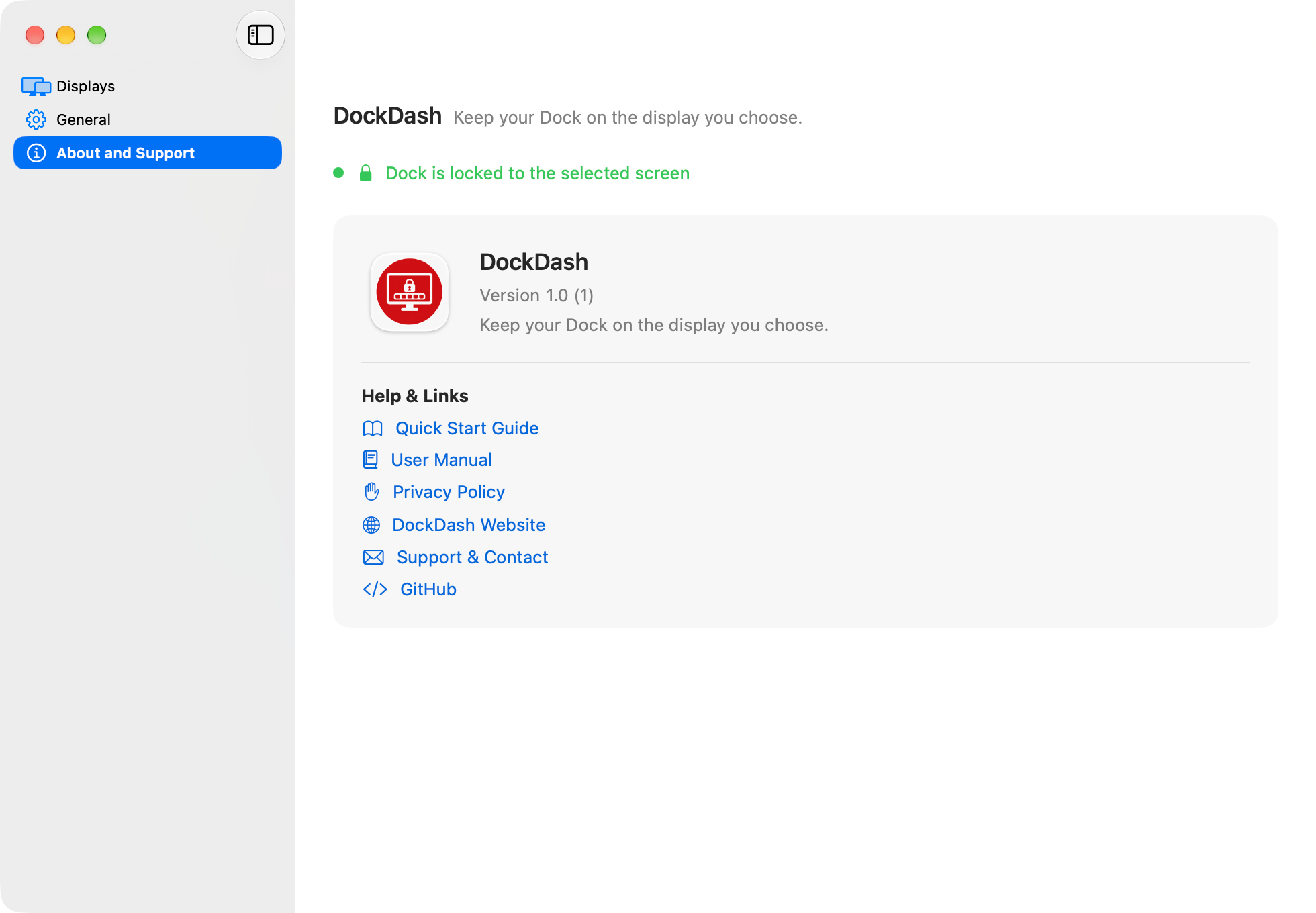
DockDash checks the Dock’s on-screen position through macOS Accessibility. While protection is active, it observes pointer, mouse-button, and scroll events and may move the pointer briefly while attempting to transfer the Dock. It does not record keystrokes or save pointer histories. Screen preferences and display aliases are stored on your Mac.
Choose a display, set up permissions, and learn how Dock protection works.
DockDash User Manual Display selection, Dock protection, preferences, and troubleshooting →